> ## Documentation Index
> Fetch the complete documentation index at: https://invopop-link-fix.mintlify.site/llms.txt
> Use this file to discover all available pages before exploring further.

# Chorus Pro supplier registration guide

> Register suppliers to issue invoices to French public institutions with Chorus Pro.

export const frChorusProRegistrationWorkflow = {
  "name": "Chorus Pro register supplier",
  "description": "Register a supplier with Chorus Pro",
  "schema": "org/party",
  "steps": [{
    "id": "9ed27c40-4ced-11f0-bcdc-61b84b5eeae8",
    "name": "Set state",
    "provider": "silo.state",
    "summary": "Set state to `processing`{.state .processing}",
    "config": {
      "state": "processing"
    }
  }, {
    "id": "b8d3dc10-4ba3-11f0-a0a5-bbd7c9d8117a",
    "name": "Register supplier with Chorus Pro",
    "provider": "chorus-pro.register"
  }, {
    "id": "a3d43940-4ced-11f0-bcdc-61b84b5eeae8",
    "name": "Set state",
    "provider": "silo.state",
    "summary": "Set state to `registered`{.state .registered}",
    "config": {
      "state": "registered"
    }
  }],
  "rescue": [{
    "id": "a6c4f090-4ced-11f0-bcdc-61b84b5eeae8",
    "name": "Set state",
    "provider": "silo.state",
    "summary": "Set state to `error`{.state .error}",
    "config": {
      "state": "error"
    }
  }]
};

export const WorkflowDiagram = ({workflow}) => {
  const stateColors = {
    processing: "yellow",
    sent: "blue",
    received: "blue",
    registered: "green",
    completed: "green",
    error: "red"
  };
  const StateChip = ({state, label}) => <Badge size="sm" color={stateColors[state] || "gray"} icon="square-small" iconType="solid">
      {label.charAt(0).toUpperCase() + label.slice(1)}
    </Badge>;
  const providerIcons = {
    "silo.state": "https://silo.invopop.com/images/status.svg",
    "silo.close": "https://silo.invopop.com/images/check-badge.svg",
    "silo.if": "https://assets.invopop.com/apps/silo/if.svg",
    "silo.folder": "https://silo.invopop.com/images/folder.svg",
    "silo.modify": "https://silo.invopop.com/images/modify.svg",
    "silo.correct": "https://silo.invopop.com/images/replace.svg",
    "silo.sleep": "https://assets.invopop.com/icons/sleep.svg",
    silo: "https://assets.invopop.com/apps/silo/icon.svg",
    "sequence.enumerate": "https://sequence.invopop.com/images/enumerate.svg",
    "transform.job.create": "https://transform.invopop.com/images/jobs.svg",
    webhook: "https://webhook.invopop.com/icon.svg",
    lookup: "https://lookup.invopop.com/icon.png",
    dropbox: "https://dropbox.invopop.com/icon.png",
    pdf: "https://pdf.invopop.com/file-pdf.svg",
    peppol: "https://assets.invopop.com/apps/peppol/icon.svg",
    ubl: "https://assets.invopop.com/apps/ubl/logo.svg",
    cii: "https://assets.invopop.com/apps/cii/logo.svg",
    "gov-fr": "https://assets.invopop.com/flags/fr.svg",
    "chorus-pro": "https://assets.invopop.com/apps/chroruspro/icon.svg",
    "gov-es": "https://assets.invopop.com/apps/gov-es/icon.svg",
    "gov-es.sii": "https://assets.invopop.com/apps/sii/icon.svg",
    "gov-es.ticketbai": "https://assets.invopop.com/apps/ticketbai/icon.svg",
    "gov-es.facturae": "https://assets.invopop.com/apps/facturae/icon.svg",
    verifactu: "https://assets.invopop.com/apps/verifactu/icon.svg",
    "gov-pl": "https://assets.invopop.com/apps/ksef/icon.svg",
    "gov-sa": "https://assets.invopop.com/apps/zatca/icon.svg",
    "gov-ar": "https://assets.invopop.com/apps/arca/icon.svg",
    "at-pt": "https://assets.invopop.com/apps/at-pt/icon.svg",
    "sat-mx": "https://assets.invopop.com/apps/sat-mexico/icon.svg",
    "sw-sapien": "https://assets.invopop.com/apps/sw-sapien/icon.svg",
    "sdi-it": "https://assets.invopop.com/apps/sdi-italy/icon.svg",
    "ticket-it": "https://assets.invopop.com/apps/agenzia-entrate/icon.svg",
    "nfe-br": "https://assets.invopop.com/apps/notas-fiscais-eletronicas-brazil/icon.svg",
    chargebee: "https://assets.invopop.com/apps/chargebee/icon.svg",
    stripe: "https://assets.invopop.com/apps/stripe/icon.svg",
    email: "https://assets.invopop.com/apps/email/icon.svg",
    cron: "https://assets.invopop.com/apps/cron/icon.svg",
    ilyda: "https://assets.invopop.com/apps/ilyda/icon.svg",
    invoicexpress: "https://assets.invopop.com/apps/invoicexpress/icon.svg",
    plemsi: "https://assets.invopop.com/flags/co.svg"
  };
  const iconFor = provider => {
    const parts = (provider || "").split(".");
    for (let i = parts.length; i > 0; i--) {
      const url = providerIcons[parts.slice(0, i).join(".")];
      if (url) return url;
    }
    return null;
  };
  const StepIcon = ({provider}) => {
    const url = iconFor(provider);
    return <span title={provider} className="flex h-7 w-7 shrink-0 items-center justify-center rounded-md border border-gray-950/10 bg-white dark:border-white/10 dark:bg-white/5">
        {url ? <img src={url} alt="" className="h-4 w-4" /> : null}
      </span>;
  };
  const renderSummary = summary => {
    const nodes = [];
    const re = /`([^`]+)`(\{[^}]*\})?/g;
    let last = 0;
    let m;
    let k = 0;
    while ((m = re.exec(summary)) !== null) {
      if (m.index > last) nodes.push(summary.slice(last, m.index));
      const attrs = m[2] || "";
      if (attrs.indexOf(".state") >= 0) {
        const state = (attrs.match(/\.state\s+\.([\w-]+)/) || [])[1] || m[1];
        nodes.push(<StateChip key={k++} state={state} label={m[1]} />);
      } else if (attrs) {
        nodes.push(<span key={k++} className="text-sm font-medium text-gray-700 dark:text-gray-300">
            {m[1]}
          </span>);
      } else {
        nodes.push(<code key={k++} className="text-sm rounded bg-gray-100 px-1 font-mono text-sm dark:bg-white/10">
            {m[1]}
          </code>);
      }
      last = m.index + m[0].length;
    }
    if (last < summary.length) nodes.push(summary.slice(last));
    return nodes;
  };
  const NoteRow = ({text}) => <div className="mt-4 mb-1 font-mono text-sm leading-5 text-gray-400 dark:text-gray-500">{"// " + text}</div>;
  const renderSteps = (steps, counter) => (steps || []).map(step => {
    counter.n += 1;
    const n = counter.n;
    const branches = (step.next || []).filter(b => b.steps && b.steps.length > 0);
    return <div key={step.id || "step-" + n}>
          {step.notes ? <NoteRow text={step.notes} /> : null}
          <div className="mt-2.5 flex items-center">
            <span className="absolute left-0 w-10 text-center font-mono text-sm text-gray-400 select-none dark:text-gray-500">
              {n}
            </span>
            <div className="flex min-w-0 flex-1 items-center gap-2 rounded-xl border border-gray-950/5 bg-white px-2 py-2 dark:border-white/10 dark:bg-gray-900">
              <StepIcon provider={step.provider} />
              <span className="text-sm shrink-0 font-medium text-gray-900 dark:text-gray-100">{step.name}</span>
              {step.summary ? <span className="text-sm min-w-0 truncate text-gray-500 dark:text-gray-400">{renderSummary(step.summary)}</span> : null}
            </div>
          </div>
          {branches.length > 0 ? <div className="ml-5 border-l border-gray-200 -my-1 py-1 pl-6 dark:border-white/10">
              {branches.map((branch, bi) => <div key={branch.code || branch.status || bi}>
                  <div className="mt-4">
                    <span className="rounded-md bg-gray-200/70 px-2 py-1 font-mono text-sm text-gray-600 dark:bg-white/10 dark:text-gray-300">
                      {branch.code || branch.status}
                    </span>
                  </div>
                  {renderSteps(branch.steps, counter)}
                </div>)}
            </div> : null}
        </div>;
  });
  const counter = {
    n: 0
  };
  const wf = workflow || ({});
  return <div className="not-prose relative my-5 rounded-2xl border border-gray-950/5 bg-gray-50 py-3 pr-4 pb-5 pl-12 dark:border-white/10 dark:bg-white/[0.03]">
      {renderSteps(wf.steps, counter)}
      {wf.rescue && wf.rescue.length > 0 ? <div className="mt-6 border-t border-dashed border-gray-300 dark:border-white/10">
          <NoteRow text="If any step fails" />
          {renderSteps(wf.rescue, counter)}
        </div> : null}
    </div>;
};

## Introduction

Chorus Pro is a mandatory service provided by the French government for invoicing French public institutions. Before a supplier can issue invoices through the platform, they need a Chorus Pro technical account and must be registered with Invopop using the [Chorus Pro app](/apps/choruspro-france).

In this guide you'll learn how to create the Chorus Pro credentials and register a supplier. Once a supplier is registered, continue with the companion guide: [Chorus Pro issuing invoices](/guides/fr-chorus-pro).

## Prerequisites

To register a supplier with Chorus Pro, you will need:

* A [Chorus Pro](https://portail.chorus-pro.gouv.fr/) account for the supplier (or a sandbox account for testing — see below).
* The supplier's VAT number.

| -            | Sandbox                                             | Live                             |
| ------------ | --------------------------------------------------- | -------------------------------- |
| **Supplier** | Test Chorus Pro account (qualif.chorus-pro.gouv.fr) | Real Chorus Pro account required |
| **Accounts** | Downloadable CSV with test accounts                 | —                                |

## Setup

Configure your Invopop Workspace for Chorus Pro supplier registration.

Complete these steps:

<Steps>
  <Step title="Connect the required apps">
    1. Go to **Configuration** > **Apps** in the Console.
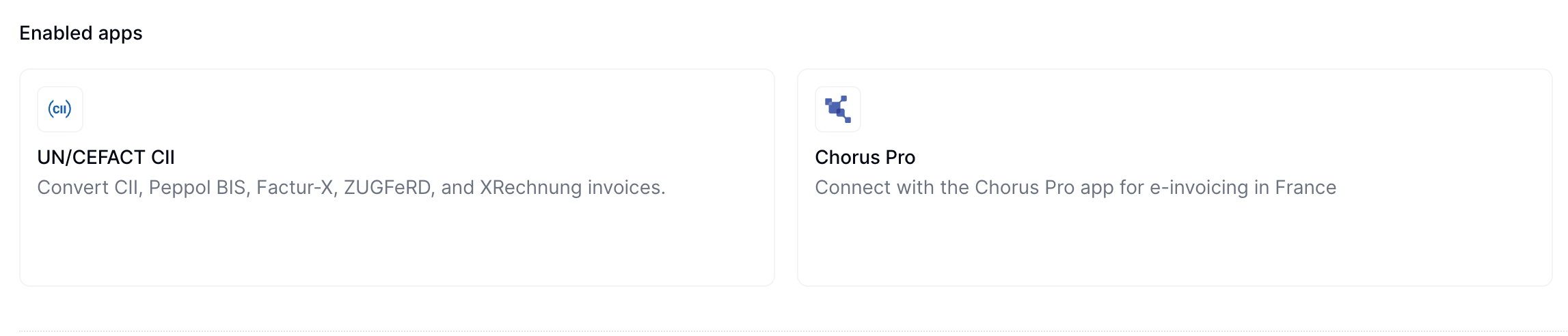
    2. Find **UN/CEFACT CII** in the app list and click **Connect** to activate the app.
    3. Find **Chorus Pro** in the app list and click **Connect** to activate the app.

    After connecting, you'll see both UN/CEFACT CII and Chorus Pro listed in the Enabled Apps section.

    <Frame>
      <img width="100%" src="https://mintcdn.com/invopop-link-fix/1lP6Ab0d1FMqmHMb/assets/guides/fr-chorus-pro-apps.png?fit=max&auto=format&n=1lP6Ab0d1FMqmHMb&q=85&s=0433e4af139a05e60570877276945b4f" alt="Chorus Pro app connected" data-path="assets/guides/fr-chorus-pro-apps.png" />
    </Frame>
  </Step>

  <Step title="Configure the supplier registration workflow">
    Add a new workflow to your workspace for registering suppliers. You can start with the template below.

    <Card iconType="duotone" title="Chorus Pro supplier registration workflow" icon="code-branch" href="https://console.invopop.com/redirect/workflows/new?template=chorus-pro-registration" horizontal>
      Add to my workspace →
    </Card>

    <Tabs>
      <Tab title="Workflow">
        <WorkflowDiagram workflow={frChorusProRegistrationWorkflow} />
      </Tab>

      <Tab title="Code">
        Copy and paste this code into a new [Empty Party workflow](https://console.invopop.com/redirect/workflows/new?template=empty-party) code view.

        ```json Example Chorus Pro register supplier workflow theme={null}
        {
            "name": "Chorus Pro register supplier",
            "description": "Register a supplier with Chorus Pro",
            "schema": "org/party",
            "steps": [
                {
                    "id": "9ed27c40-4ced-11f0-bcdc-61b84b5eeae8",
                    "name": "Set state",
                    "provider": "silo.state",
                    "summary": "Set state to `processing`{.state .processing}",
                    "config": {
                        "state": "processing"
                    }
                },
                {
                    "id": "b8d3dc10-4ba3-11f0-a0a5-bbd7c9d8117a",
                    "name": "Register supplier with Chorus Pro",
                    "provider": "chorus-pro.register"
                },
                {
                    "id": "a3d43940-4ced-11f0-bcdc-61b84b5eeae8",
                    "name": "Set state",
                    "provider": "silo.state",
                    "summary": "Set state to `registered`{.state .registered}",
                    "config": {
                        "state": "registered"
                    }
                }
            ],
            "rescue": [
                {
                    "id": "a6c4f090-4ced-11f0-bcdc-61b84b5eeae8",
                    "name": "Set state",
                    "provider": "silo.state",
                    "summary": "Set state to `error`{.state .error}",
                    "config": {
                        "state": "error"
                    }
                }
            ]
        }
        ```
      </Tab>
    </Tabs>

    Keep the workflow ID at hand as you'll need it later.
  </Step>
</Steps>

## Chorus Pro credentials

This section explains what suppliers need to configure within their Chorus Pro account to enable integration with Invopop.

To configure Chorus Pro, complete these steps:

<Steps>
  <Step title="Create a Chorus Pro account">
    Sign up for a [Chorus Pro](https://portail.chorus-pro.gouv.fr/aife_csm?id=aife_enrollment) account if you don't have one.

    <Info>
      To test in sandbox mode, create an account in the [Chorus Pro sandbox](https://qualif.chorus-pro.gouv.fr/aife_qual). Download a CSV file with test accounts. Use one of the accounts to log in. For more information, visit the [Chorus Pro documentation](https://portail.chorus-pro.gouv.fr/aife_documentation?sys_kb_id=8ea00d85c398ea1477c2530ed40131e2\&id=kb_article_view\&sysparm_rank=1\&sysparm_tsqueryId=66f41ea033de625056688539bd5c7bd9).
    </Info>
  </Step>

  <Step title="Navigate to API settings">
    Once logged in to your Chorus Pro account, navigate to the API configuration area:

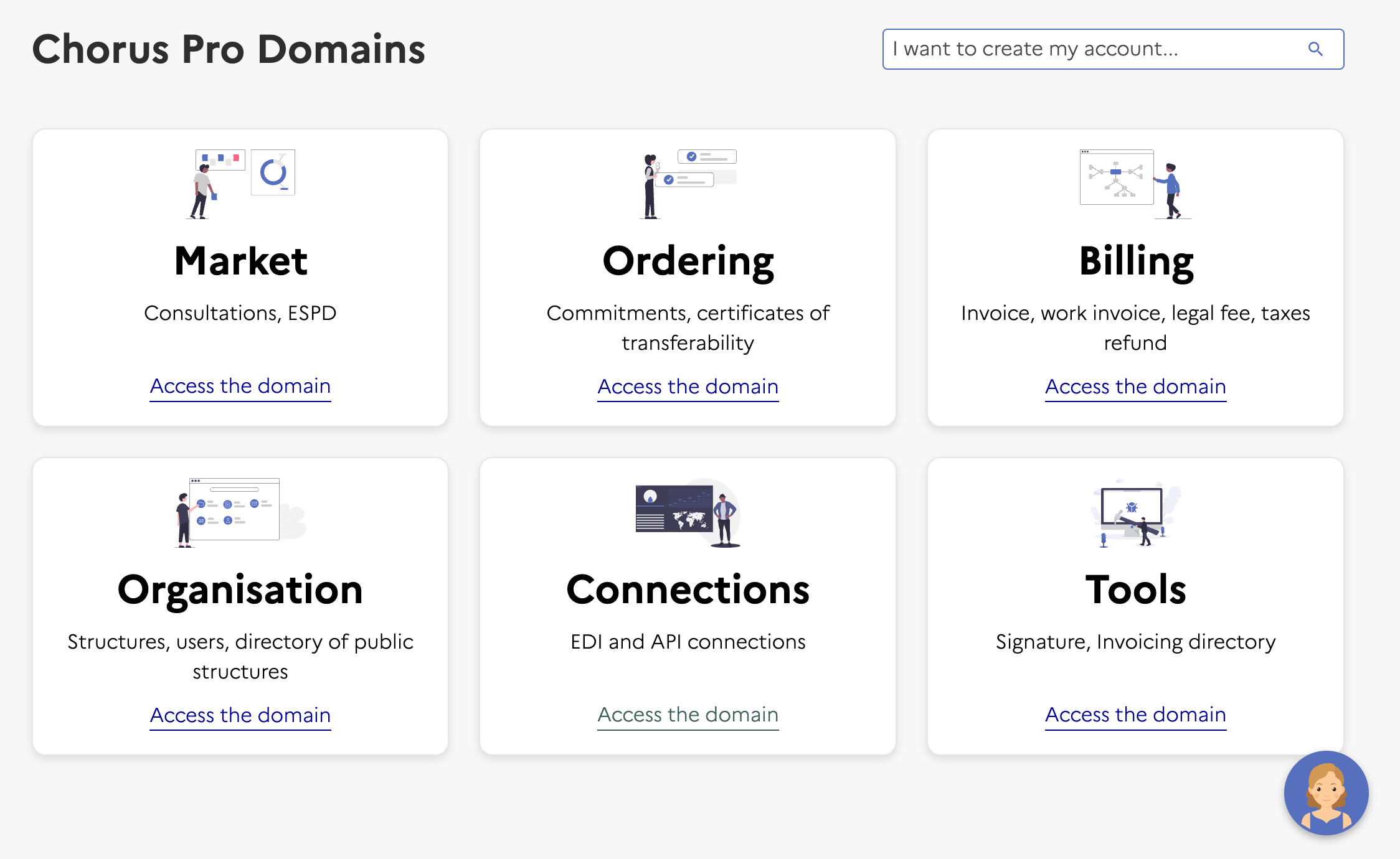
    1. Go to **Domains** > **Connections** in the main menu

    <Frame caption="Navigate to Domains → Connections">
      <img width="450" src="https://mintcdn.com/invopop-link-fix/1lP6Ab0d1FMqmHMb/assets/guides/fr-chorus-pro-connections.png?fit=max&auto=format&n=1lP6Ab0d1FMqmHMb&q=85&s=5fd687b22bd6caaa2fad33ef4b6deaa0" alt="Navigate to Domains → Connections" data-path="assets/guides/fr-chorus-pro-connections.png" />
    </Frame>

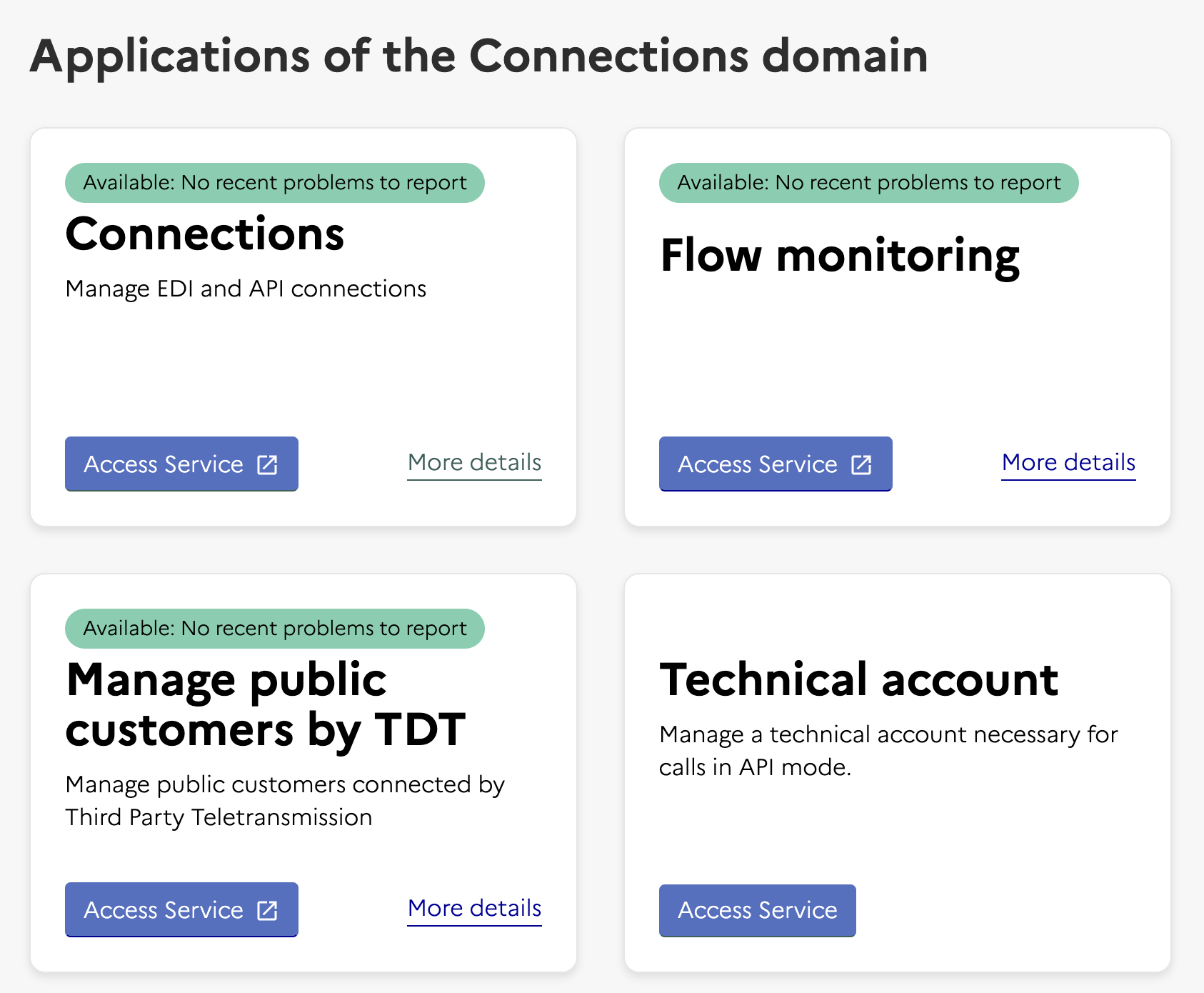
    2. Click **Access Service** in the Technical Account section (bottom left)
    <Frame caption="Navigate to Technical Account">
      <img width="450" src="https://mintcdn.com/invopop-link-fix/1lP6Ab0d1FMqmHMb/assets/guides/fr-chorus-pro-access-service.png?fit=max&auto=format&n=1lP6Ab0d1FMqmHMb&q=85&s=4e9128306e857d83b9a0daaccb2e2aba" alt="Navigate to Technical Account" data-path="assets/guides/fr-chorus-pro-access-service.png" />
    </Frame>

    This opens a new page where you can manage your technical accounts.
  </Step>

  <Step title="Create a technical account">
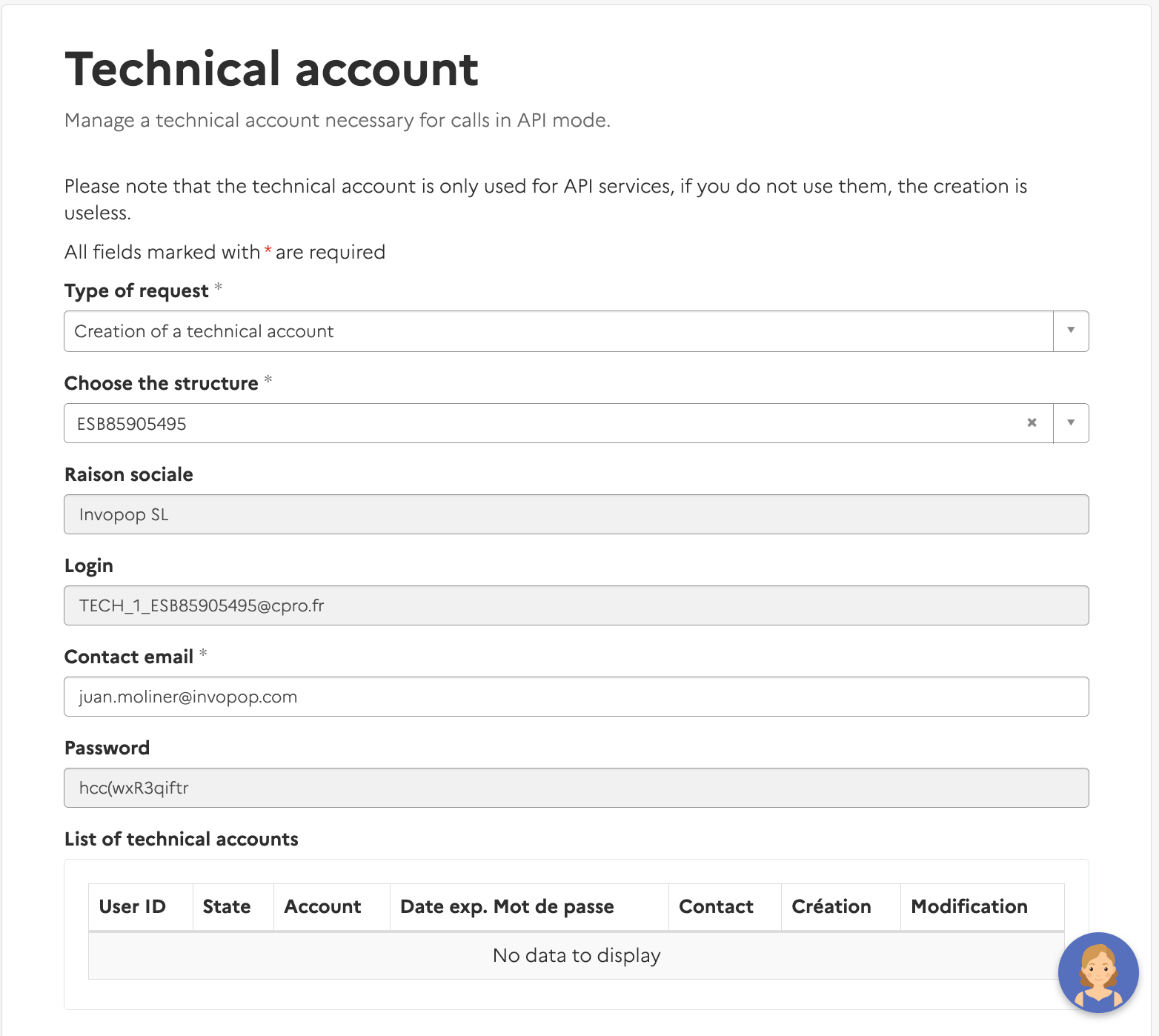
    Set up the technical account credentials, this opens a form to create a technical account:

    * Set the type of request to **Creation of a technical account**

    * Select your company in the company field

    * This creates a login and password. **Copy these credentials as you'll need them when registering with Invopop**

          <Frame caption="Technical Account Creation">
            <img width="100%" src="https://mintcdn.com/invopop-link-fix/1lP6Ab0d1FMqmHMb/assets/guides/fr-chorus-pro-technical-account.png?fit=max&auto=format&n=1lP6Ab0d1FMqmHMb&q=85&s=bfcd2ef15e64b0424836eac88ced6c98" alt="Technical Account Creation" data-path="assets/guides/fr-chorus-pro-technical-account.png" />
          </Frame>

    Click **Submit** to complete the setup

  </Step>
</Steps>

Return to Invopop for the next steps.

## Register a supplier

Now that you have a technical account, you can register a supplier with Chorus Pro.

<Steps>
  <Step title="Upload a Supplier">
    Use the [Create an entry](/api-ref/silo/entries/create-an-entry-put) endpoint to upload a new supplier. Include a [party](https://docs.gobl.org/draft-0/org/party) object in the [data](/api-ref/silo/entries/create-an-entry-put#body-data) field. For this step, you only need the VAT number.

    After successful upload, you'll see the supplier in the **Parties** section with status `Empty`.

    <Frame caption="Supplier registration">
      <img width="100%" src="https://mintcdn.com/invopop-link-fix/1lP6Ab0d1FMqmHMb/assets/guides/fr-chorus-pro-supplier-1.png?fit=max&auto=format&n=1lP6Ab0d1FMqmHMb&q=85&s=dee3c399c53d9863118757e9f5bb02d9" alt="Supplier registration in progress" data-path="assets/guides/fr-chorus-pro-supplier-1.png" />
    </Frame>
  </Step>

  <Step title="Send the Supplier to the registration workflow">
    Send the supplier to the registration workflow using the [Create a job](/api-ref/transform/jobs/create-a-job-post) endpoint. Use:

    * The supplier's silo entry UUID from the previous step
    * The Supplier Registration workflow ID from the [Setup](#setup) section

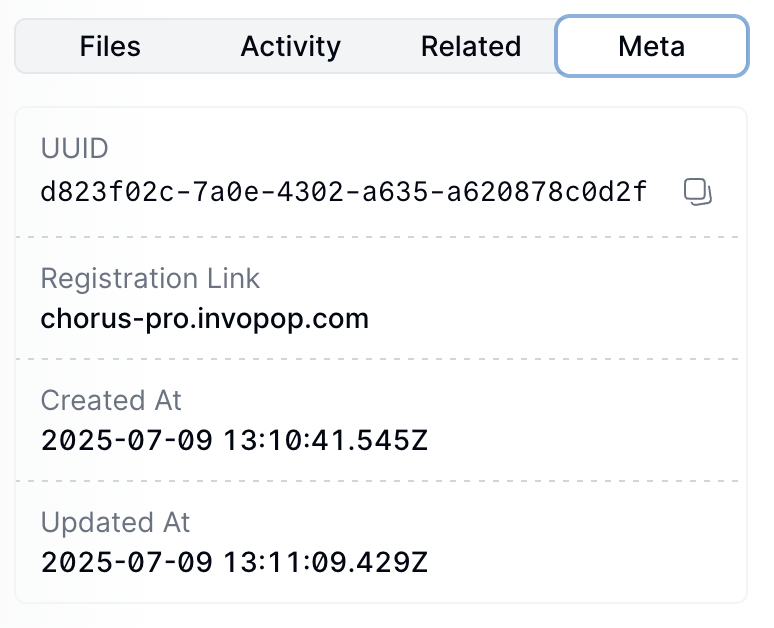
    This workflow generates a unique URL for the supplier to access and complete the registration process. The URL is stored in the supplier's metadata.

    <Frame>
      <img width="450" src="https://mintcdn.com/invopop-link-fix/1lP6Ab0d1FMqmHMb/assets/guides/fr-chorus-pro-supplier-2.png?fit=max&auto=format&n=1lP6Ab0d1FMqmHMb&q=85&s=b9fc5e7241a8f65eec4a864328e3d5e3" alt="Supplier registration in progress" data-path="assets/guides/fr-chorus-pro-supplier-2.png" />
    </Frame>
  </Step>

  <Step title="Complete Chorus Pro Authentication">
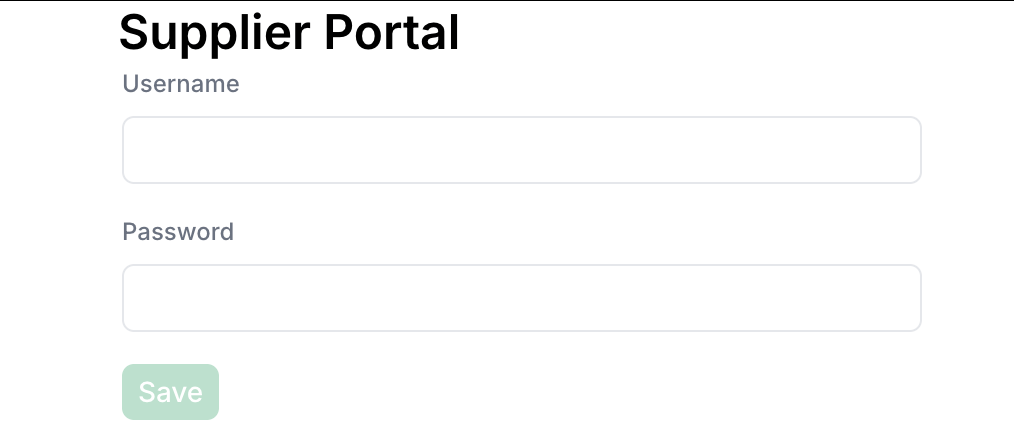
    The workflow stays in progress until the supplier completes the registration process. The supplier must access the link and add the credentials they created previously.

    <Frame>
      <img width="450" src="https://mintcdn.com/invopop-link-fix/1lP6Ab0d1FMqmHMb/assets/guides/fr-chorus-pro-supplier-3.png?fit=max&auto=format&n=1lP6Ab0d1FMqmHMb&q=85&s=a3d67beeea1cc9b726d13d17ba27daf2" alt="Supplier registration in progress" data-path="assets/guides/fr-chorus-pro-supplier-3.png" />
    </Frame>

    The supplier's status will change to `Registered` when authentication is complete.

    <Note>
      You can fill the form via API by sending a PUT request to the registration link. The payload should be a JSON object with the following fields:

      * `username` (string): The supplier's Chorus Pro username.
      * `password` (string): The supplier's Chorus Pro password.
    </Note>
  </Step>
</Steps>

At this point, you're ready to start sending invoices on behalf of the supplier. Head over to the [Chorus Pro issuing invoices guide](/guides/fr-chorus-pro) to continue.

## FAQ

<AccordionGroup>
  <Accordion title="How do I onboard a new supplier in France?">
    For B2B PA flows: register the supplier via the France PA Register Party workflow (publishes the SIREN to the Annuaire and Peppol). For Chorus Pro: register the supplier with their SIRET on Chorus Pro's portal and link credentials in the Chorus Pro app.
  </Accordion>

  <Accordion title="How are supplier credentials stored in Invopop for France?">
    France PA does not require supplier-side certificates — Peppol uses Invopop's AP cert. Chorus Pro uses an OAuth token bound to the supplier's account; the token is encrypted at rest in Invopop.
  </Accordion>

  <Accordion title="What happens if my supplier registration fails?">
    Ensure the supplier has a valid Chorus Pro account and provided correct credentials. Contact support if registration workflow issues persist.
  </Accordion>

  <Accordion title="What credentials does Chorus Pro require to authenticate a supplier?">
    OAuth 2.0 client credentials issued by Chorus Pro after registration. Invopop stores the token encrypted; suppliers can revoke access at any time through Chorus Pro's portal.
  </Accordion>

  <Accordion title="How do I register for a Peppol inbox in Invopop?">
    Upload the company as a party (Console → Parties → Suppliers → + New Supplier, or via the Create an Entry API) with name, tax\_id, address, and email. Then run it through the party registration workflow — the contact will receive a registration wizard link to provide proof of ownership.

    Once approved, the party is registered on the Peppol network (SMP+SML+Peppol visibility by default with the `ubl-invoice` doc group) and ready to receive invoices.
  </Accordion>

  <Accordion title="I get 'XXXX:XXXXXXXXX is already registered' when registering a supplier — what now?">
    A supplier with that Participant ID already exists in your workspace. Either reuse the existing party or, if it really is a new entity, check whether it should be registered under an alternative scheme (for example Belgium's `9925` VAT scheme rather than the default `0208`).
  </Accordion>

  <Accordion title="How do I assign multiple inboxes to a single supplier?">
    Register them through different silo entries, even though they represent the same legal party. The supplier must upload proof of ownership for each inbox.
  </Accordion>

  <Accordion title="What are Participant IDs?">
    Unique identifiers for entities on the Peppol network, made up of two parts:

    * **Scheme** — identifies the type of identifier (e.g. `9920` for Spanish VAT, `0208` for Belgian KBO/BCE)
    * **Code** — the actual identification number

    Participant IDs are usually based on VAT numbers or local business identifiers, and Invopop can derive them automatically from a Tax ID. Some countries support multiple schemes — Belgium, for example, defaults to `0208` but some entities are only registered under `9925` (VAT). If you hit a "receiver not found" error, the recipient may be registered under an alternative scheme.
  </Accordion>

  <Accordion title="What visibility level should I set on my Peppol Party?">
    Peppol Party visibility determines what you can send and receive:

    * `smp` — SMP only, for testing
    * `smp+sml` — SMP and SML, useful when you only want to send
    * `smp+sml+peppol` — SMP, SML, and the Peppol Directory, recommended for both sending and receiving (and for being discoverable in the Directory)

    In general, use the highest visibility available.
  </Accordion>
</AccordionGroup>

More available in our [France FAQ](/faq/france) section

***

<AccordionGroup>
  <Accordion title="🇫🇷 Invopop resources for France">
    |            |                                                                                                                                                                                                                                                                                                                                                                                       |
    | ---------- | ------------------------------------------------------------------------------------------------------------------------------------------------------------------------------------------------------------------------------------------------------------------------------------------------------------------------------------------------------------------------------------- |
    | Compliance | <Icon icon="https://assets.invopop.com/flags/fr.svg" /> [Invoicing compliance in France](/compliance/france)<br /> <Icon icon="timeline" /> [Compliance timeline](/timelines/france)                                                                                                                                                                                                  |
    | Apps       | <Icon icon="https://assets.invopop.com/flags/fr.svg" /> [France](/apps/france)<br /><Icon icon="https://assets.invopop.com/apps/peppol/icon.svg" /> [Peppol](/apps/peppol)<br /><Icon icon="https://assets.invopop.com/apps/chroruspro/icon.svg" /> [Chorus Pro France](/apps/choruspro-france)                                                                                       |
    | Guides     | <Icon icon="book" /> Chorus Pro — [Supplier registration](/guides/fr-chorus-pro-supplier) · [Issuing invoices](/guides/fr-chorus-pro)<br /><Icon icon="book" /> [PA Guide](/guides/fr-pa) — [Registration](/guides/fr-pa-registration) · [Invoicing](/guides/fr-pa-invoicing) · [Status](/guides/fr-pa-status) · [Reporting](/guides/fr-pa-reporting)                                 |
    | FAQ        | <Icon icon="square-question" /> [France FAQ](/faq/france)                                                                                                                                                                                                                                                                                                                             |
    | GOBL       | <Icon icon="https://assets.invopop.com/icons/gobl.svg" />  [France Tax Regime](https://docs.gobl.org/regimes/fr)<br /> <Icon icon="https://assets.invopop.com/icons/gobl.svg" /> [Chorus Pro Addon](https://docs.gobl.org/addons/fr-choruspro-v1)<br /> <Icon icon="https://assets.invopop.com/icons/gobl.svg" /> [French Factur-X Addon](https://docs.gobl.org/addons/fr-facturx-v1) |
    | GitHub     | <Icon icon="github" /> [gobl.xinvoice](https://github.com/invopop/gobl.xinvoice)                                                                                                                                                                                                                                                                                                      |
  </Accordion>
</AccordionGroup>

<Card title="Participate in our community" icon="forumbee" href="https://community.invopop.com" arrow="true" horizontal>
  Ask and answer questions about invoicing in France →
</Card>